
Search for a Place
The search feature on the Places screen allows you to search for a specified text string anywhere within several commonly-used Place fields, including name, Tag, Place Integration ID, and Location Category.
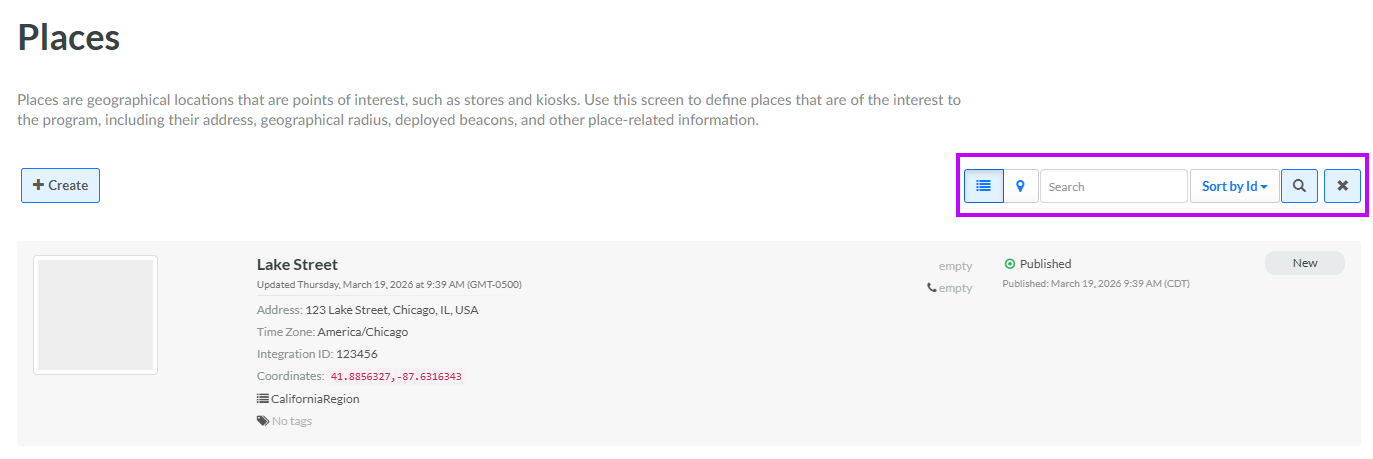
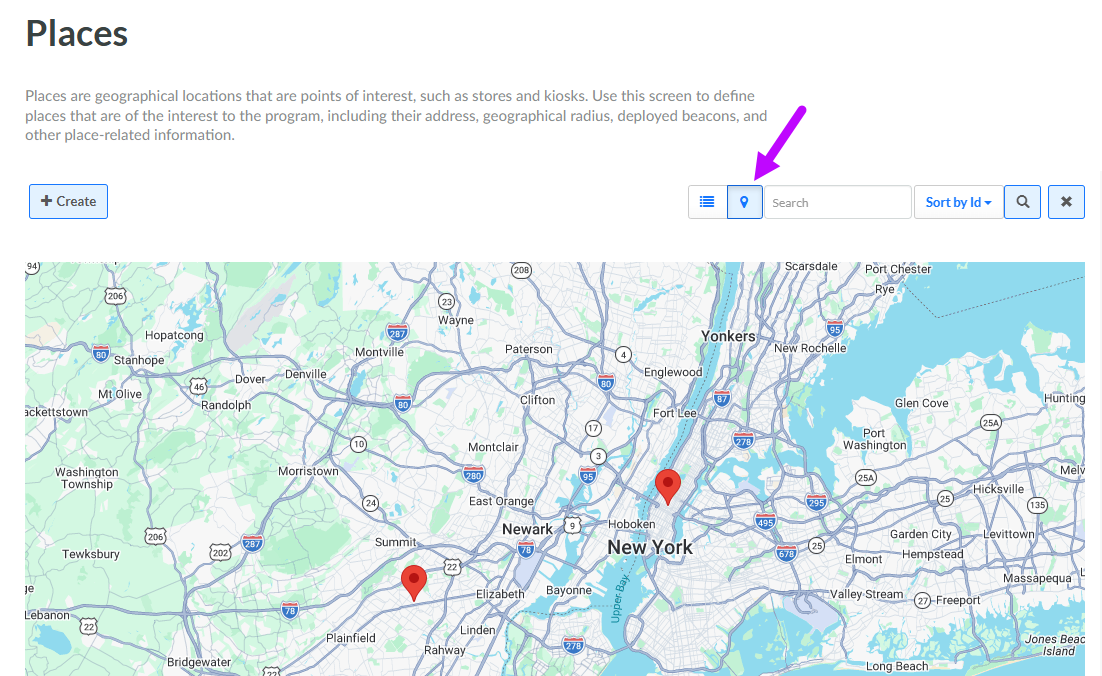
The Places screen supports two view methods: List View and Map View. In List View, the Places defined in your Loyalty account are displayed in a list, similar to other asset types. In Map View, the platform displays a map with pins marking the Places defined in your account.
Search in List View
To search for a Place in List View:
-
Select Admin from the top navigation bar, then select Locations > Places from the side navigation menu. The Places screen is displayed, with List View selected by default.
-
Optionally, in the Search field, enter the desired text string.
-
Click the Search icon. The screen is refreshed to show only the Places that meet your search criteria. If you entered multiple search criteria, the Place must meet ALL criteria.
-
To sort the search results, select the desired sort order from the Sort By drop-down menu. The default sort order is by: Place ID.
-
Optionally, to remove all search criteria and revert to the default criteria, click the Clear icon.
Once you have found the desired Place, click it to view the Place Details screen (see
Search in Map View
To search for a Place in Map View:
-
Select Admin from the top navigation bar, then select Locations > Places from the side navigation menu. The Places screen is displayed, with List View selected by default.
-
Optionally, in the Search field, enter the desired text string.
-
Toggle to Map View. The platform displays a map with pins marking the Places defined in your account.
-
Optionally, click-and-drag on the map to pan the view. You can also zoom in and zoom out by holding down the Control key and scrolling on your mouse.
-
Hover your mouse cursor over a pin to see the Display Name of a Place. Click the pin to see a pop-up window with the Place's internal name and street address.
After clicking on a pin, click the arrow icon within the pop-up window to view the Place Details screen (see
